
Translate existing video or audio, assign a voice to each speaker, and revise the dubbing before export. Use the subtitle workflow when you need translated text over the original audio.
Used this tool? Rate it
Used this tool? Rate it


Edit, caption, and generate video in one place


AI translation for multilingual workflows


AI image editing from a reference photo

Multi-model image studio, free to start


Natural AI photo editing for portraits and projects


AI assistant for writing, analysis and tasks

From a prompt to a deck, site or doc


Build random generators, share them free
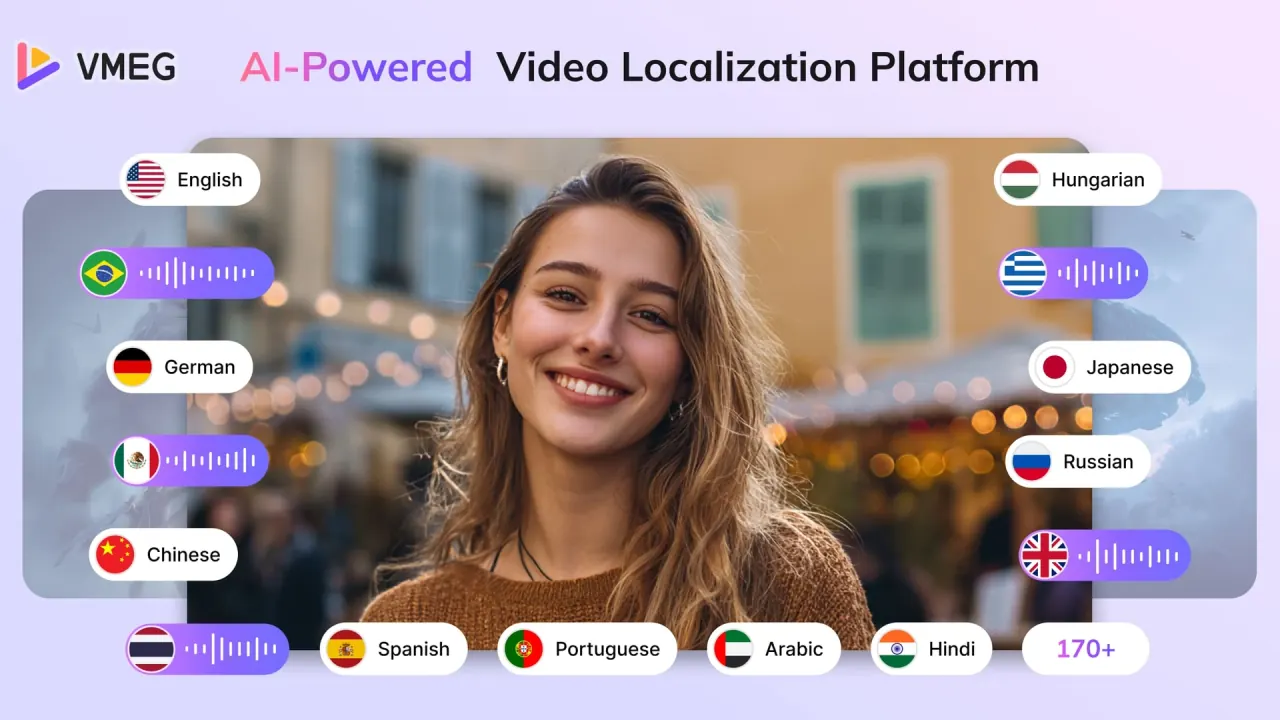
VMEG AI is an online video localization platform for translating spoken content, generating dubbed voices, and preparing subtitles from existing media. Its video translation workflow starts with a recording you want to reuse. Its AI dubbing produces a translated script and generated speech to review against the picture. The main decision is what the audience needs to receive: a video with a new voice track, the source video with translated captions, or separate assets for a production editor. That choice governs which parts of VMEG AI you need and how much review is involved.
The self-service catalog advertises more than 170 languages for its transcription, subtitle, and dubbing tools. Check the feature and target variant you intend to use.
The video workflow's Dynamic Duration setting adjusts translated speech timing for the target language. With Dynamic Duration off, the video guide describes sentence timing as tied to the original timestamps. Try the distinction on a line with a visible action. An explanation over a static slide can tolerate room for a longer phrase. A warning that must be heard before a machine is switched on needs the timing checked against that action.
VMEG AI offers source-language, translated, and bilingual subtitles. Subtitle translation is a useful path when viewers already know the speaker or the performance carries information through tone. A bilingual version can help language learners connect the original wording to the translation, but review how much picture the two lines occupy on the smallest screen you expect. A separately exported caption file also gives the publisher a choice about when and where the captions appear.
The audio translation workflow exports a translated MP3 and offers source and translated SRT files. That is a distinct deliverable from dubbing a video with visible speakers. It suits an audio edition of an interview or episode, where the important checks are speaker identity, pronunciation, pauses, and the level of the soundtrack.
VMEG AI allows an existing SRT file to be supplied in the dubbing workflow. For a training module with an approved caption file, use that transcript as the starting point and check whether it matches the cut in the upload. Pay special attention to commands, menu names, units and negative instructions. If the new narration says a translated menu name while the original screen remains in another language, decide whether reviewers need the original label in the subtitles or a new screen capture.
The editor can skip translation of selected segments. That can be useful in a product demonstration where a sample customer greeting is supposed to stay in its original language and the rest of the instruction is localized. Check in the export whether the skipped segment comes through as intended, including the transition into the next dubbed line.
Separate voice assignments suit a conversation where voice changes help listeners track who is speaking, provided reviewers check fast exchanges and any parts in which people interrupt one another. Sample a difficult exchange as well as a clean introduction. The introduction alone gives little information about whether turns remain intelligible during the busiest section.
The subtitle workflow can download the video with subtitles as well as both language files. For a lesson with a classroom edition and a social excerpt, that gives the teacher a way to retain original audio while giving the production editor a text asset. Review against the specific cut for each channel. Timestamps matched to the long lesson will need attention if an excerpt drops an introduction or removes a pause.
The web dubbing workflow can start from a supported file or public video link. Use the browser workflow when the people who review wording and timing need to see the picture with the new audio before export. A public link is an input option, and teams should check that it resolves to the intended cut and that they have permission to process it.
The standalone VMEG AI API supports submitting speech and translation jobs from another backend and receiving results by webhook. An app-synced API path is documented for jobs that need to appear in the website for later edits and re-export. When evaluating the API, use the available developer settings and billing documentation for that workflow.
VMEG AI meters translation with credits. Its credit guide lists 60 credits per minute for video translation and charges a full minute for a video under one minute. This makes clip count relevant as well as total runtime. A collection of very short ads or lesson teasers can consume more credits than its combined time suggests. Estimate from the actual files you plan to submit and use the amount displayed for the chosen job when budgeting.
| Payment route | How access is paid for | When to compare it |
|---|---|---|
| Pay as You Need | Buy credits in advance for occasional use | Irregular campaigns or a short experiment |
| Monthly subscription | Recurring billing with credits valid for one month | A regular publishing schedule |
| Annual subscription | Annual payment with credits valid for 12 months | Work planned across the year |
| Enterprise | Custom pricing and usage limits | A larger operation with specific billing or support needs |
The subtitle guide lists 10 credits per minute and bills a clip under one minute as a full minute. Start your estimate with the output you need. A subtitle-only clip and a clip with newly generated speech represent different work.
The published lip sync surcharge is inconsistent. The general credit guide lists an extra 90 credits per minute. The dedicated lip sync article lists an extra 60 credits per minute. The video translation walkthrough lists an extra 30 credits per minute. Use the figure shown for your own job before authorizing a batch, especially if the timeline includes both clips with visible presenters and clips that only need narration.
The refund guide offers complimentary trial credits to new users. It describes subscription, Pay as You Need, and Pay for Task payments as generally non-refundable. Its renewal section allows a refund request within 24 hours of renewal when credits for the new month are unused. A technical failure, such as corrupted dubbing output that support confirms, can qualify for a credit refund under the same guide. Keep the credit remedy distinct from a payment refund while comparing plans and note the renewal date if you are trying a recurring subscription.
The video translation guide says song translation is unsupported. A video with music under spoken dialogue is a different case from a music video whose lyrics are the primary content. If an interview includes a sung passage, decide how that passage should appear before estimating a fully dubbed delivery. The documented background audio capability is relevant to preserving music under narration, while translated lyrics would need a separate editorial solution.
The dedicated lip sync guide says the effect is absent from the editor preview and must be inspected in the downloaded video. Review visible speech in that file, including the moment before and after a cut. The dubbing tool offers optional lip sync for footage with visible speakers.
Processing time depends on the video length, speaker count, selected language and options such as lip sync. Leave room for review and regeneration when the delivery date depends on a specific language or scene. If a recording contains crosstalk, pick an excerpt with that condition and compare it with clean speech before scheduling a longer job.
VMEG AI says it requires explicit authorization before you clone someone else's voice. Check that the speaker has approved the intended use and language before selecting an original-voice clone. A team can choose a preset voice when the source speaker should remain in the original recording but has given no permission to synthesize new speech in their voice.
The vendor says users retain ownership of their uploaded and generated content. It also says videos, audio, and scripts are excluded from foundational model training by default, with an explicit opt-in for such use. A finished local-language video may still contain a licensed soundtrack, a contractor's performance, or footage restricted to a particular distribution channel. For sensitive internal material, review the privacy terms and your organization's upload rules before treating a browser or API job as an approved place to send a recording. Use non-sensitive footage for early checks if access or retention requirements are still being reviewed.
Yes. Use the subtitle translator for translated text on top of the source recording. Check the timing and file format the publisher expects. If the source speech and translated captions are both needed, review whether the audience should see both languages together or choose between them.
Yes. Edit the translated line and regenerate it. If the error originated in the transcription, correct the source first and request a new translation. Play back the corrected line with the lines around it to check pacing and meaning together.
Lip sync is optional. Consider it when the audience can see the speaker's mouth and will pay attention to the match with the new voice. For narration over slides or product footage, compare the benefit with the additional credit cost. Inspect the download if you use the effect.