Google DeepMind
Nano Banana 2.1
Nano Banana 2.1 is Google DeepMind’s image generation and editing model based on Gemini 3.6 Flash. It is useful for turning one reference photo into a set of campaign images while keeping the product recognisable from shot to shot. Edit product photos with Nano Banana 2.1. Change the setting, keep key details, and compare the tools that offer this exact version.
Model released
Where to use this model
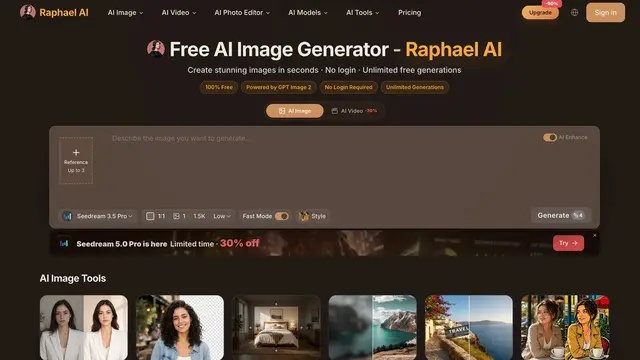
Use Raphael for a browser edit where you can choose 1K, 2K or 4K. Its version page lists up to 14 references of up to 20 MB each.
Evidence source
- Capabilities
- 1K, 2K and 4K output · Dedicated Nano Banana 2.1 browser generator · Up to 14 JPG, PNG or WebP reference images
- Limitations
- Check available settings and credit quote before generating · Each reference is limited to 20 MB on this entry
- Evidence source

Model guide
Build a matching set of product images
- Start with a sharp photo where the outline, hardware and label are visible. Save it separately so every edit can return to the same original.
- Use one reference for the product and, if needed, another for the lighting. Describe which parts of each reference to use.
- Choose the target crop first. Review one draft at 1K where that size is available, then choose 2K or 4K for the final export if the channel offers it.
Example prompt: Keep the green bottle, its cap and the label from image 1. Replace the table with pale stone. Use the soft side light from image 2. Keep the original camera angle and leave the right third clear for copy.
Check the download before making a batch
Open the downloaded file at full size. Read the label, compare the silhouette to the original and look closely where glass, straps or reflections meet the background. If an edit changes the product, return to the original reference and tighten the relevant instruction. Add price and legal copy in your layout editor if it needs to be exact.
Choose a tool for the next export
Raphael’s version-specific form exposes the size and credit estimate. In Google AI Studio, confirm the model ID before saving an API workflow. In the Gemini app, confirm plan access and the download settings on the device you will use.
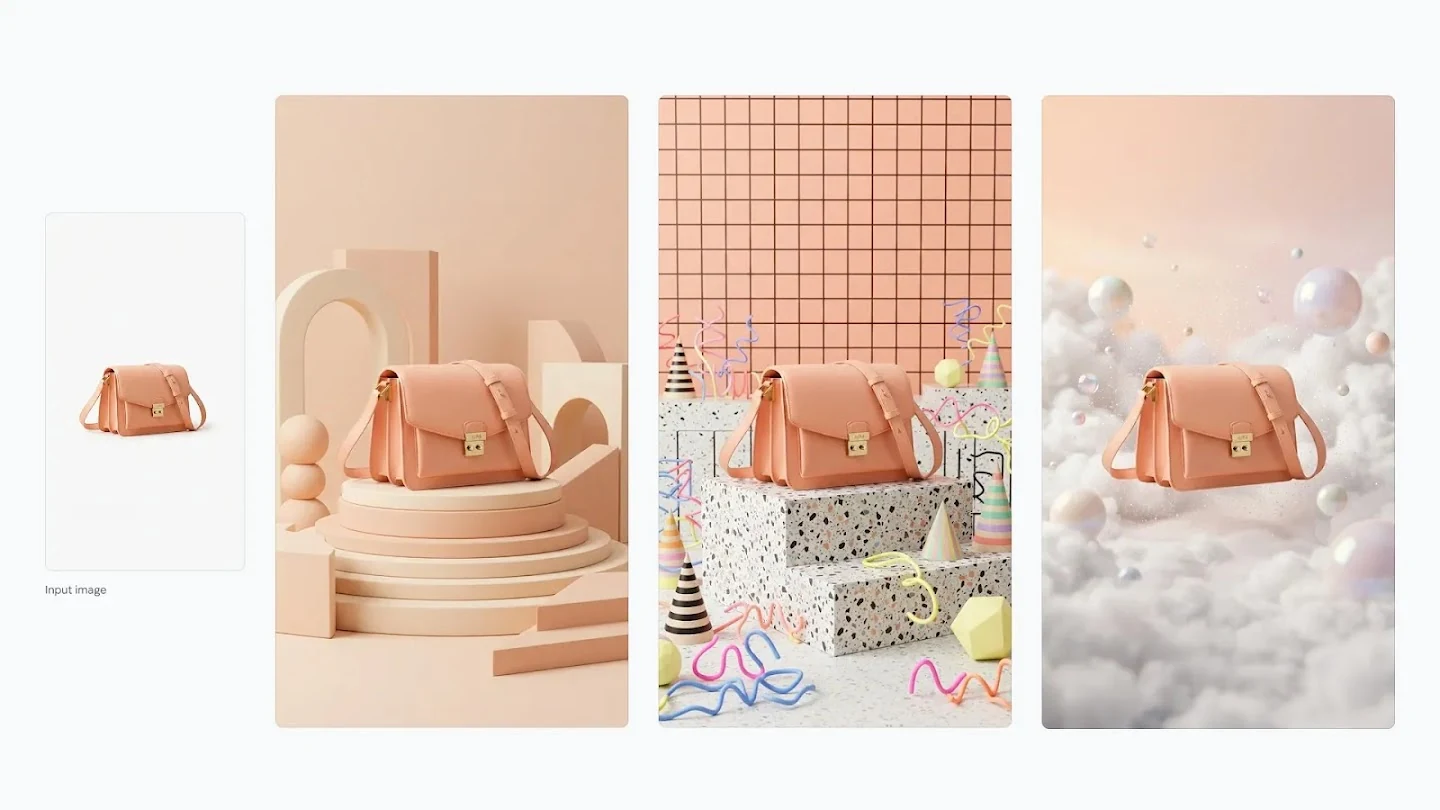
In Google’s handbag example, one reference supplies the bag and several new scenes change the setting. Compare the silhouette, clasp and colour across the panels before applying the workflow to your own photos. Google · Raphael AI
What Nano Banana 2.1 does well
Change the scene around a product
Start with a clear product photo, then specify the new surface and light. Check that the shape, finish and branding still match the reference.
Give each reference a job
Identify the source of the product, the palette and the lighting separately. This makes it easier to spot which reference contributed an unwanted detail.
Design for the final crop
Ask for the intended aspect ratio and leave room for a headline. When labels matter, inspect the downloaded export at full size before increasing resolution.
Compare Nano Banana models
These are Raphael’s public settings for three Nano Banana versions. The app and API may expose different controls.
Swipe to see all specifications.
Nano Banana 2.1 FAQ
Can Nano Banana 2.1 replace only the background?
Ask for a local change and name what to retain. Compare product edges, label text and proportions against the reference before using the result.
Can I use 4K and several reference photos together?
Raphael offers 1K, 2K and 4K and lists up to 14 reference photos. Check the current controls and credit total for the combination you want.
Do I need image search for a product I already photographed?
A clear reference is the best starting point. Use search only if an identifiable real location or visual detail matters, then verify it independently.
Is Nano Banana 2.1 free in Gemini?
Google lists access to 2.1 for AI Plus, Pro and Ultra. Check the version and quota on your account before planning a batch.