OpenAI · 2.6
GPT Image 2.6 Sunburst
GPT Image 2.6 Sunburst is OpenAI’s image model for detailed generation and precise edits. It is useful when the subject, geometry and composition of a product photo need to stay recognizable across revisions. Retouch a product photo with GPT Image 2.6 Sunburst, preserve the original composition and choose the right browser or API workflow.
Model released
Where to use this model
Choose Sunburst in Raphael’s browser editor for a reference-led retouch. Use Raphael’s own account and check the credit quote, including each reference per output.
Evidence source
- Capabilities
- 1K / 2K / 4K; up to 16 JPG, PNG or WebP references · GPT Image 2.6 Sunburst in the browser · Text-to-image and reference editing
- Limitations
- 20 MiB per reference; reference charges are per output · Raphael account and credits
- Evidence source

Model guide
Plan a product recolor
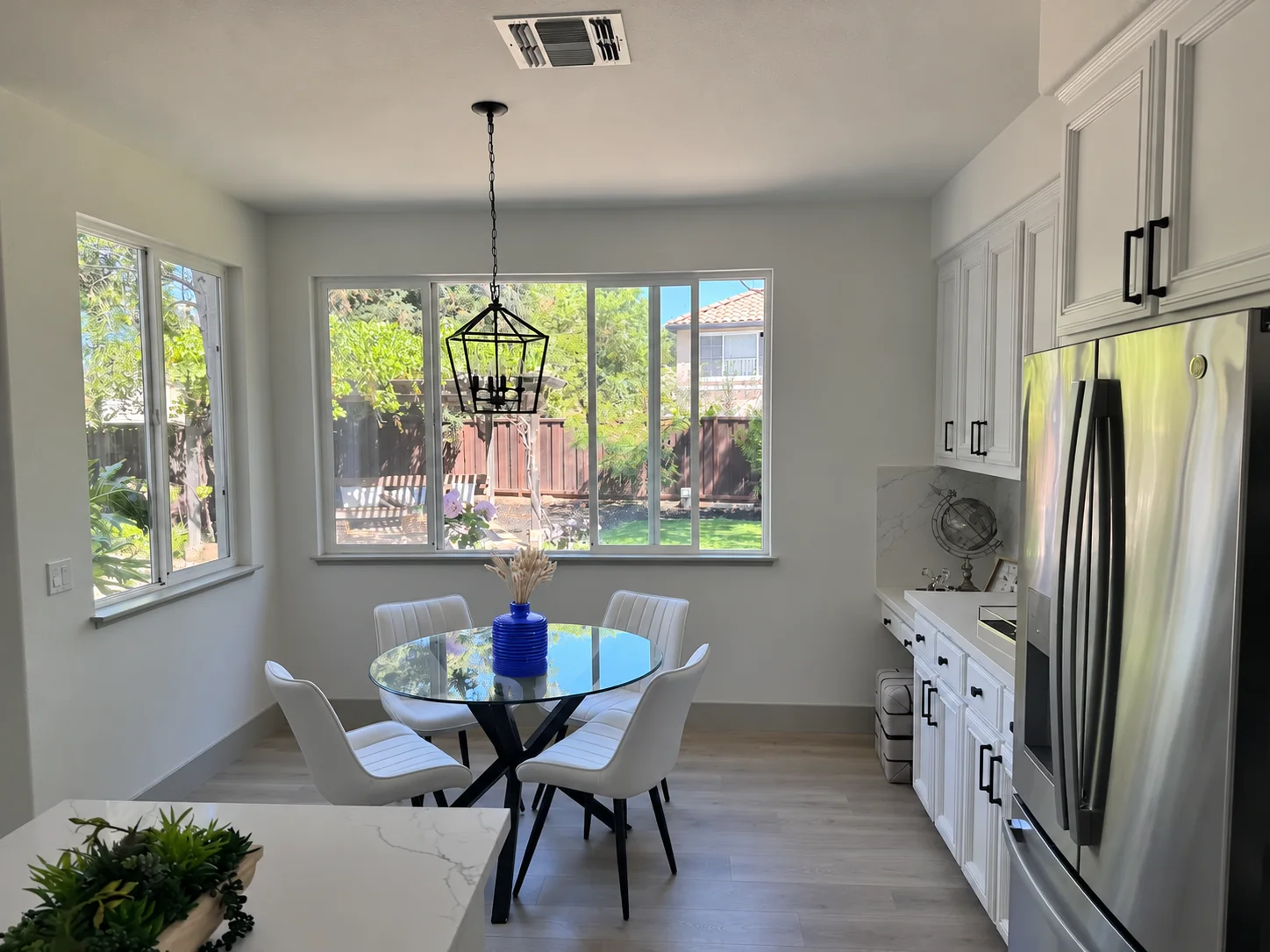
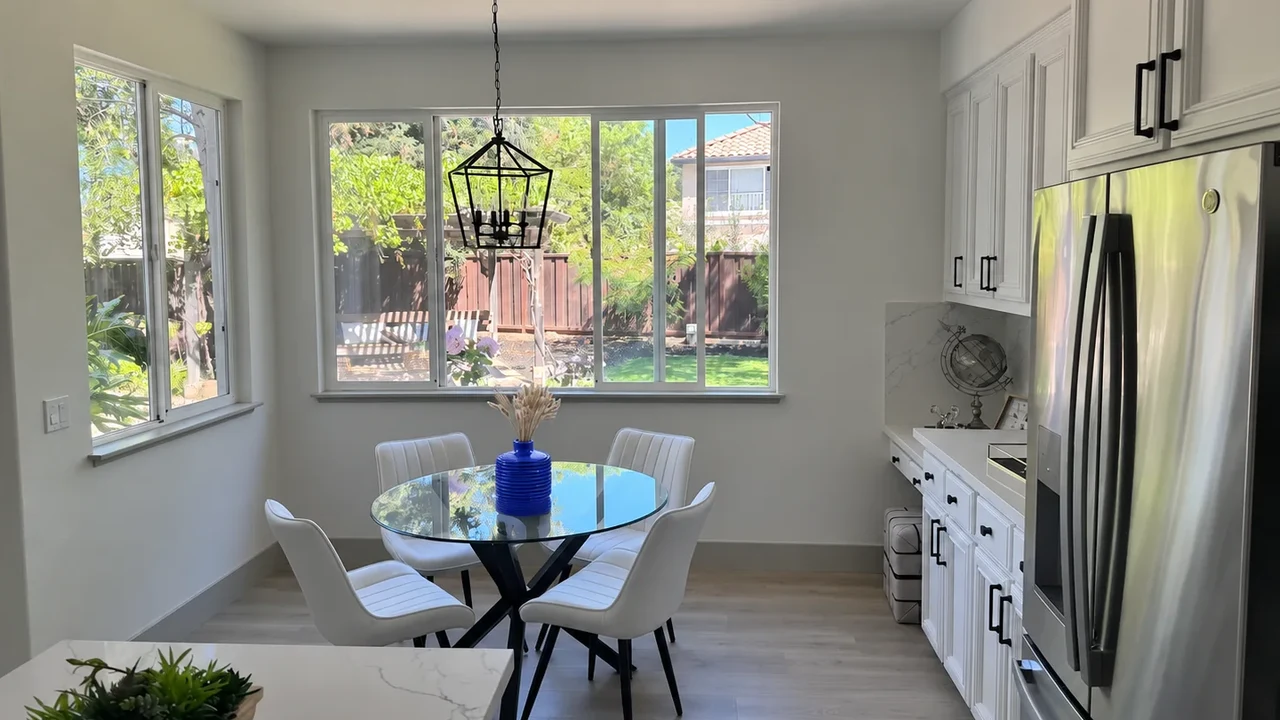
Upload the original as reference 1. Ask to change only the vase to cobalt-blue satin ceramic. List the unchanged details: the silhouette, stems, reflections and crop. Request one medium-quality proof.
Pick a working surface
In Raphael, select Sunburst and check the credit quote including references. In Runway Dev, use the exact Sunburst model identifier and keep the task ID until the image is ready. Use the OpenAI edit endpoint with an annotated layer if you need markup controls.
Approve the file before delivery
Compare the result beside the original at 100% and check shape, lettering and highlights. Change one setting per pass. Composite the edit onto the original for pixel-sensitive client work, and download any temporary output before the link expires.
OpenAI’s annotated vase example shows how a visual instruction is reflected in the final color while the setting stays recognizable. Open the official image-edit example
What Sunburst does well
Target one edit
Mark or name the area to change and specify which shapes, materials and surroundings to preserve.
Handle dense layouts
Describe placement and quote exact text. Compare planning effort separately from quality when composition fails.
Make reusable assets
Use a transparent PNG or WebP for compositing, and inspect the exported alpha channel and fine boundaries.
Compare GPT Image 2.6 variants
Raphael’s browser settings are shown here. For transparent raster output and special formats, check the settings of the endpoint you use.
Swipe to see all specifications.
GPT Image 2.6 Sunburst · FAQ
Can I select Sunburst by name?
The OpenAI API identifies it as gpt-image-2.6-sunburst. A generic Images 2.6 label in an interface does not establish which variant is running.
Does markup lock the rest of the photo?
No. Markup guides the edit. If an area must stay pixel-identical, composite the approved change onto the original.
How do I check that a product cutout is transparent?
Export a PNG or WebP with transparency enabled. Inspect the alpha channel and test the edges over light and dark backgrounds.