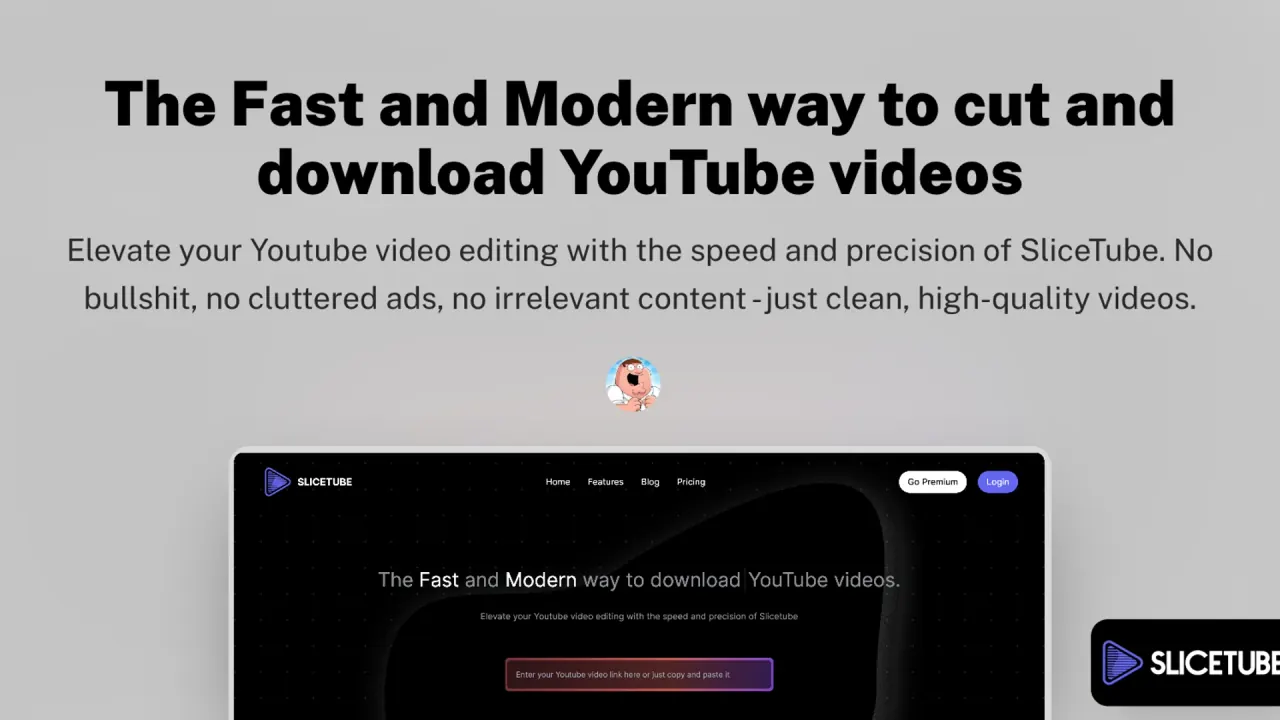

SliceTube turns a YouTube link into a trimmed clip at the timestamps you pick, exported as MP4, MP3 or WebM up to 4K, with batch downloads and no account.
Used this tool? Rate it
Used this tool? Rate it


Natural AI photo editing for portraits and projects


Chat Your Way to a Finished Video


Edit, caption, and generate video in one place


Generate new shots and rework existing footage


AI image editing from a reference photo


Multi-model image studio, free to start


AI assistant for writing, analysis and tasks


From a prompt to a deck, site or doc
SliceTube is a browser-based YouTube video cutter that takes a URL, keeps only the section between two timestamps and returns a finished clip. Nothing is installed, no account is needed, and the export carries no SliceTube watermark. Its front page states the job plainly: paste a link, choose your timestamps and download your clip in MP4, MP3, WebM or up to 4K.
The scope is the product. Most downloaders start with the whole file and leave trimming to you; this one starts with the clip, so a two-minute answer inside a ninety-minute interview never becomes a ninety-minute download. The interface is a single page with a preview, duration field, start and end inputs and a format selector, which makes it a utility rather than an editor.
Two limits shape how you plan around it. Every documented input is a YouTube URL; the site describes no local-file upload and no other platform. And quality is capped by the source video and by your plan, so "up to 4K" is a ceiling rather than a promise.
The product calls its core a slicer: you trim and download by selecting the time range to save, and the preview shows that span before processing. The trimmer page frames the same control as second-level precision without an editing project, and the clip downloader page as a clip-first workflow for long videos. Precision therefore means two numbers; needing cuts inside a single second or burned-in captions puts this outside its job. That is the whole of the YouTube trimmer.
Each format has a stated purpose: MP4 for saving a clip to a computer, phone or editor; MP3 for keeping audio from a podcast answer or lecture segment without a video file; WebM for compatible browsers and web workflows. The site also says trimming preserves the original resolution rather than re-encoding down, a claim worth testing before a large batch.
Quality runs from 144p to 4K, with the option list depending on the source video and the plan. "Supported videos and plans" is the vendor's own qualifier: a 4K claim on a 1080p upload is not a 4K result, and the free tier sits at the bottom of the ladder.
Batch downloads arrived as a separate capability, announced as a way to queue several clips from one video or from several videos in one pass. The batch YouTube downloader page describes a three-step queue: add links, choose output settings, let the tool work through the group. Each clip still arrives as its own file, and the vendor notes there is no extra menu to learn.
The gain is repetition, not speed. A podcast editor pulling ten clips or a teacher saving five lecture sections repeats the same paste-trim-download loop; batch mode collapses that loop into one setup.
The preview is the step worth slowing down for. Because the export contains only the selected range, a start point set one sentence too late cannot be fixed after download; you re-cut.
Choose the format and quality once for the whole group, because the queue applies those settings to the batch rather than asking per clip. Group similar sources together: ten clips from one podcast behave differently from one clip each out of ten unrelated videos, and only the second case needs a per-link check that each source is long enough and public. Keep the first queue modest, since the vendor says limits vary by plan and processing requirements.
Format is usually decided last, which is backwards here because it changes what the clip is good for. Pick MP4 when the clip goes into an editor, a slide deck or a phone gallery; MP3 when only the words matter, such as an interview answer or a lecture section; WebM when the destination is a browser-based workflow that prefers it. If you need picture and audio from the same span, run the range twice rather than converting afterwards, because a second pass costs less than a lossy round trip.
These cases share one shape: a long source, a short moment, and no reason to keep the rest.
Social clips from long videos. Extracting one moment before moving it into a Shorts, Reels or TikTok workflow is the most common use, and where the quality ceiling earns its keep, since vertical republishing crops and magnifies compression.
Podcast and interview segments. Saving one answer from a long conversation is the case that benefits most from clip-first processing; the alternative is downloading an hour to keep four minutes.
Lectures, tutorials and course sets. Keeping the explanation you need without downloading an entire hour-long video is the student version of the same trade, and batch mode covers the term-long version where a course is a list of videos.
Gaming and livestream highlights. Cutting the exact highlight from a longer stream is where timestamps are already known, because chat and stream markers usually say where the moment is.
Research and archiving. Processing groups of videos for review, archiving or source analysis is the batch use case; audio extraction jobs are its close relative.
Source gathering for editors. Preparing multiple source videos for a larger editing workflow is what the batch page calls creator sourcing, the point where the tool stops competing with an editor and starts feeding one.
SliceTube fits people whose bottleneck is getting a specific moment out of YouTube, not polishing it afterwards. The vendor segments its audience three ways.
Beyond those three it suits podcast and interview editors working in volume, researchers archiving specific passages, and small teams that can use the extra seat on the longer passes. It is a poor fit for anyone needing multi-track editing, captions, transitions or colour work; one independent Hong Kong tech write-up in June 2026 described a clean dark interface that behaves the same on phone and desktop, with no editor behind it. It also fails teams that need a paper trail, since the site publishes no reachable terms or privacy page.
SliceTube runs in a web browser and nowhere else. There is no desktop application and no install step; the site's FAQ says the cutter works through a modern browser on an iPhone, Android phone, tablet, Mac or Windows PC.
Input is a YouTube URL and output is a file downloaded to your device. Processing happens on the vendor's servers, so the device needs only a browser and a stable connection; a long batch on mobile data is a bandwidth decision, not a hardware one.
Browser coverage is described loosely: an independent write-up mentions Chrome and Firefox, and the vendor says "works in a modern browser" without a compatibility list, so an unusual browser deserves a single test clip first.
SliceTube pricing is built around how long you want access, not how many clips you cut: three passes, a promotional lifetime option, and a free tier whose quality is capped.
| Plan | Price on the page | What the page says you get | Best fit |
|---|---|---|---|
| Free | Free to use | Cutting and downloading with supported quality limits | Trying the workflow on one clip |
| Monthly Pass | $5 | One month, positioned for solo creators and one-off gigs | A single project or a busy week |
| 6 Months Pass | $15 | Half a year, one extra team member, dedicated CPUs, "Save up to 3 months" | A creator posting regularly |
| Yearly Pass | $25 | A year, one extra team member, dedicated CPUs, "Save up to 6 months" | The default for steady use |
The lifetime offer sits outside the table: the pricing page advertises Lifetime Access at $30 against a struck-through $99, labelled a limited-time anniversary deal with "Offer expires soon". At that size it undercuts two years of the Yearly Pass, so the honest comparison is $30 once against two years of the Yearly Pass, with no stated end date.
Two details matter at checkout. The extra team member and dedicated CPUs appear only on the half-year and yearly passes, so a team of two cannot run on the Monthly Pass. And the savings wording disagrees with itself: the pricing page claims up to 3 months on the half-year pass and up to 6 months on the yearly pass, while the features page says an annual licence saves up to 4 months.
The free tier is real but limited. The FAQ states free cutting and downloading comes with supported quality limits, and a rival cutter's 2026 comparison puts the free ceiling at 360p. One naming inconsistency adds confusion: the FAQ refers to a "SliceTube Pro" upgrade, while the pricing page sells three named passes.
The alternatives that matter are not the ones with more features; they change a constraint you actually have.
| Tool | Free option | Paid starting point | What changes |
|---|---|---|---|
| SliceTube | Cutting with supported quality limits | $5 per month, $15 for six months, $25 per year | The reference point: YouTube URLs only, no account, batch queue |
| TrimTube.io | Free plan with standard-quality clips | $4.99 per month, or $29.99 once | Lower entry price, a one-time licence in the same range, and a claimed 8K ceiling with bulk export of up to five clips |
| Kapwing | Free with a watermark on exports | $16 per month | A full timeline editor with auto-subtitling and dubbing, at roughly three times the monthly price |
| 123apps | Free with ads and daily operation limits | $6 per month, or $48 per year | Upload-based trimming inside a 51-tool suite with a 10 GB file ceiling and no YouTube link workflow |
TrimTube.io is the closest substitute on price and shape: it also takes a YouTube link, runs without login and advertises a watermark-free export, but it bundles priority processing, three parallel editors and bulk export of five clips into a $4.99 monthly plan, and sells a $29.99 one-time licence that competes directly with SliceTube's promotional lifetime deal. Its quality claim goes further, which is a claim to test rather than accept.
Kapwing is the choice when the clip is a starting point rather than an output. A real editor with subtitles and dubbing costs $16 a month and the free tier watermarks exports, so the comparison is fair only if you would otherwise pay for editing elsewhere.
123apps suits files already on your disk, or a workflow that also needs PDF, audio and conversion tools: it trims by upload rather than by link and caps files at 10 GB.
Clideo belongs in the same conversation for another reason: it offers a free tier with feature limits, its paid subscriptions renew automatically, and its pricing FAQ states plainly that it does not issue refunds. That last point is worth checking for any cutter you pay for, including this one.
The constraints below change a purchase decision, and most come from the vendor's own pages.
The free tier does not reach the advertised ceiling. Free cutting and downloading is explicitly limited in quality, and the paid product unlocks the higher resolutions. Anyone who needs 4K for social republishing is on a paid plan from the first clip.
The ceiling depends on the source and the plan. Resolution options vary by video and by plan, and 4K is described as available for supported videos and plans. A 1080p source will not become 4K.
Plan allowances are not published as numbers. The FAQ says limits vary by plan and processing requirements and points to the pricing page, but that page lists no clip counts, concurrency limits or file-size caps, so batch capacity has to be discovered by using it.
The input is YouTube only. Every documented workflow starts from a YouTube URL, and the site describes no upload path for local files and no support for other platforms. If your sources are Vimeo, a drive folder or a camera card, this is not the entry point.
There is no reachable terms or privacy page. Requesting the terms path or the privacy path returns a 404 page, so refunds, data retention and acceptable-use terms cannot be read before signing up. The privacy-first tagline has no policy page behind it on those paths.
Savings claims disagree, and the paid product has two names. The passes claim up to 3 and 6 months of savings, the features page claims up to 4 months on an annual licence, and the FAQ calls the paid tier "Pro" while checkout sells passes.
Independent coverage is thin and does not agree on quality. A Hong Kong tech outlet's June 2026 write-up lists a 360p to 1080p range, well below the vendor's 4K claim, and the launch listing carries seven reviews averaging 3.00 out of 5, too small a sample to generalise from.
Editing stops at the cut. Nothing on the site describes captions, overlays or transitions; the documented output is the trimmed range in one of three formats, and anything beyond that happens in another tool.
No. The tool runs in the browser, needs no install and requires no sign-up to start cutting; the vendor's announcement repeats that batch downloads work without an account.
The site advertises a ladder from 144p to 4K, with options depending on the source video and your plan. Free use is explicitly limited in quality, and higher resolutions sit behind the paid passes.
Yes. Batch mode queues multiple time ranges from one video, or single ranges from several videos, and returns each clip as a separate file. Set format and quality for the batch first, because the queue applies those settings to the group.
MP4 when the clip goes into a social workflow or an editor, MP3 when only the audio is needed. WebM is for browser-based workflows that prefer it, and running the same range twice beats converting afterwards.
On price, yes: $30 once is less than two years of the $25 yearly pass, and the offer is advertised as a limited-time anniversary deal. On certainty, no: the page gives no end date and publishes no terms page, so the lifetime promise rests on the vendor's word alone.