
Toolso.AI
Toolso.AI
All ToolsCategoriesTrendingLatest ToolsPricingBlog
Toolso.AI
Toolso.AI
Toolso.AI
Toolso.AI

Discover the best AI tools to boost your productivity

GitHubGitHubTwitterX (Twitter)YouTubeYouTubeTikTokEmail

Popular Categories

  • AI Writing
  • AI Image
  • AI Video
  • AI Coding
  • More Categories

Explore

  • Latest Tools
  • Popular Tools
  • More Tools
  • Submit Tool
  • Pricing

About

  • About Us
  • Contact
  • Blog
  • Changelog

Legal

  • Cookie Policy
  • Privacy Policy
  • Terms of Service
  • Refund Policy
© 2026 Toolso.AI All Rights Reserved
Limited timeLimited-time offerFeatured Listing24h priority review · No backlink · 30 days featured$29.90then $59.90Price rises to $59.90 after Oct 31Ends in--:--:--Submit now
  1. Home
  2. All Tools
  3. Video Editing
  4. VideoCompress
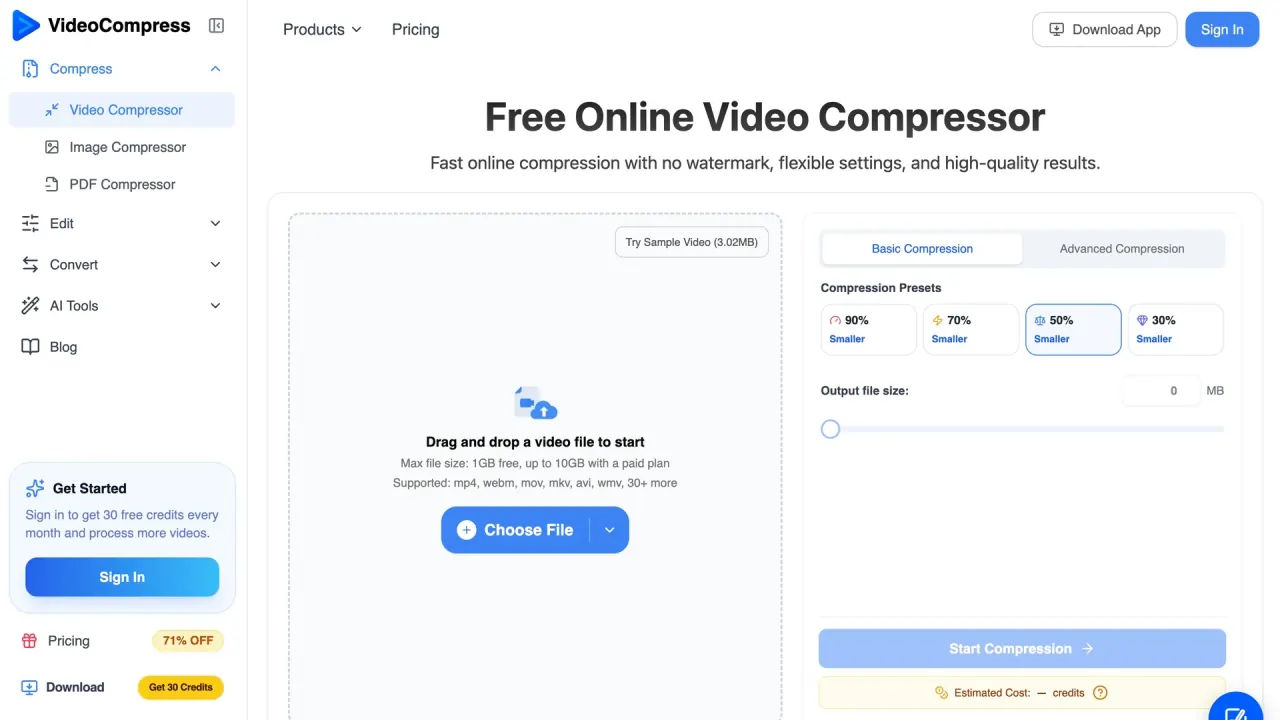
VideoCompress interface preview
VideoCompress logo

VideoCompress

VideoCompress shrinks MP4, MOV, MKV and 40+ other video formats in the browser by target size or preset, with H.264/H.265 encoding, 30 free monthly credits and a macOS/Windows desktop app for local batch work.

Video EditingVideo#Free#Batch Processing#Video
View Pricing
Saves
Visits
Views
Pricing
Paid
Published
Oct 3, 2026
Domain
videocompress.ai
Community rating

Used this tool? Rate it

Rate this tool

VideoCompress Product Information

View Pricing
Tool Information
Saves
Visits
Views
Pricing
Paid
Published
Oct 3, 2026
Domain
videocompress.ai
Community rating

Used this tool? Rate it

Rate this tool

Featured Tools

Related Tools

View Pricing

What is VideoCompress?

VideoCompress is an online video compressor at videocompress.ai: you upload a clip, choose a target size or quality level, and download a smaller file without a watermark. The vendor describes VideoCompress as an all-in-one audio and video compression, editing and processing tool that works online in the browser and offline through its desktop app.

The .ai domain suggests more than the compressor pages claim. Those pages describe an "intelligent" video compressor that compresses efficiently while maintaining quality. They name H.264 and H.265 as the encoders and reserve explicit AI claims for the separate transcription and video translation tools. A third-party AI tool directory listing describes the compression itself as AI-powered, using advanced AI algorithms; the homepage, pricing page and desktop page checked make no such claim about compression.

Scale figures come only from the vendor. The homepage says the online video compressor is trusted by over 200,000 users. The desktop app page separately lists 450,000+ users, 6,000,000+ files processed and a 68.2% average compression rate, both as captured on October 2, 2026.

Several other web compressors use near-identical names; this page covers only the service at videocompress.ai, whose web version uploads files to its own servers.

Core features

The compressor is a single upload, encode and download workflow with two ways to reduce video file size. Compression and transcription draw on the same monthly credit balance, while video edits are counted separately.

Compression controls

  • Target size and presets: Basic mode lets you set a target output size in MB, or pick a preset that aims for a file 90%, 70%, 50% or 30% smaller than the original.
  • Advanced mode: Advanced settings give more control over output quality, bitrate and resolution for anyone who wants to tune the result instead of accepting a preset.
  • Codecs: Output is encoded with H.264 or H.265, and the vendor says H.265 is usually the better choice for stronger compression, especially for 1080p and 4K videos.
  • Formats: The compressor accepts more than 40 video formats, including MP4, AVI and MKV, while the upload panel also lists WebM, MOV and WMV.
  • Input sources: Files can be dragged in, picked from the device, imported from Google Drive or Dropbox, or fetched by pasting a video URL.

Cloud processing and cost preview

Web compression runs on the vendor's cloud servers, so a phone or an older laptop does not spend its own CPU or memory on encoding. The trade-off is that every file has to be uploaded first.

The settings and the price are linked: a smaller target or stronger preset raises the compression ratio, which sits alongside duration, codec and resolution among the factors that set the credit cost. The compress button shows the credits a job will use before it starts.

Tools beyond compression

  • AI transcription: The video-to-text converter uses AI to transcribe in over 100 languages and accents and exports TXT, DOCX, PDF, SRT or VTT files.
  • AI video translation: The AI video translator detects the source language, supports 99 target languages and exports original, translated or bilingual subtitles, including ASS files.
  • Editing and conversion: Outside compression, the web app links to a video cutter, a crop tool, an audio cutter, a video-to-MP3 converter, and image and PDF compressors.

Guide

Compressing a video in the browser

  1. Add a file from the device, cloud storage or a pasted URL. A 3.02MB sample video is available to try the flow before you upload your own footage.
  2. Pick Basic Compression to set a target size or a preset, or Advanced Compression to adjust quality, bitrate and resolution yourself.
  3. Check the credit estimate on the compress button. Free accounts need to be signed in to receive their monthly credits.
  4. Start the job and download the result when it finishes; the vendor's own workflow is upload, select a compression mode, then download the compressed file.

Reading the sample results

The homepage shows one 145 MB source file reduced to 68 MB (-53.1%) in Basic mode, 35 MB (-75.9%) in Advanced mode and 25 MB (-82.8%) in Strong mode. These are vendor examples from a single file, not independent measurements, and the page does not state the source codec, resolution or quality settings behind them.

Use cases and examples

The vendor frames VideoCompress around everyday sharing and storage problems rather than production editing:

  • Email attachments: The vendor pitches the tool for large videos that are hard to send as attachments, making files easier to send, receive and manage in email.
  • Discord uploads: To compress video for Discord, the vendor suggests targeting 10MB, citing a 10MB upload cap for users without Nitro.
  • Storage clean-up: The vendor positions compression as a way to free space on devices and in cloud storage taken up by large video libraries.
  • Repurposing recordings: Recorded talks, lessons or meetings can also be transcribed on the same account, from the same credit balance.

Who is it for

The vendor names content creators, marketers, educators and anyone who needs optimized videos for web use or sharing as its audience.

Good fit:

  • People who compress occasional clips under 1GB and are comfortable with files sitting on a cloud service for up to 24 hours.
  • Phone users and anyone who cannot install software, since the web version runs in a browser.
  • Heavy or privacy-sensitive users: the vendor recommends the desktop app for people who process files frequently, need to handle large or multiple files without upload time, or want data processed entirely on their device.

Less suited:

  • Buyers who need a privacy policy that specifically addresses uploaded media files.
  • Anyone who needs to compress files larger than 10GB through the browser.
  • Linux users who want the local desktop app, which is offered only for macOS and Windows.

Platforms

  • Web browser: The web version needs no installation and runs in a browser on Windows, Mac, iPhone or Android.
  • Desktop app: Installers are provided for Apple Silicon and Intel Macs and for Windows x64 and Windows arm64 devices.
  • Offline use: The desktop app processes files locally and keeps working without an internet connection.
  • Batch compression: In the desktop app you can add multiple files at once, apply shared settings and let the app queue each task automatically.
  • Larger files: On paid plans, the desktop app processes large files and long recordings without file-size restrictions.
  • More local tools: The desktop app bundles 10+ local tools, including video conversion, video to GIF, an audio recorder, an audio cutter and audio extraction.
  • Mobile apps: No native iOS or Android app is offered on the pages checked; phones use the mobile web version.

Web versus desktop

ItemWebDesktop app
Upload time (100 MB example)About 1 minute0 seconds
Compression time (100 MB example)About 30 secondsAbout 5–10 seconds
Multiple filesOne file at a timeBatch compression
File size limitUp to 10GBNo limit
File historyDeleted within 24 hoursStored on the device
NetworkStable internet connectionWorks offline

The vendor calls its timing figures an illustrative comparison based on a 100 MB file and says actual times vary by device, file, network connection and settings. The table's "no limit" entry is qualified elsewhere on the same page as applying to paid plans.

Pricing

After signing up and logging in, each account receives 30 free credits every month, and the cost of a job depends on compression ratio, video duration, codec and other settings.

PlanPriceCredits per monthMax file sizeTranscriptionVideo editsProcessing
Free$0/mo301GBUp to 30 minutes/month5 per dayStandard
Basic$9/mo75010GBUp to 750 minutes/monthUnlimitedPriority
Pro (marked Most Popular)$29/mo5,00010GBUp to 5,000 minutes/monthUnlimitedPriority
Premium$59/mo7,50010GBUp to 7,500 minutes/monthUnlimitedPriority

Every plan, including Free, lists 4K video support, private video processing, no watermark and secure file deletion.

As a reference point, compressing a 5-minute 1080p video costs about 1 credit, and transcription costs 1 credit per minute. Credit use is tied to processing resources and may not rise in direct proportion to file size or video duration. Subscription credits are issued monthly, and unused credits expire at the end of each billing cycle; they cannot be carried over, refunded, transferred or recovered. Credits spent on a failed compression task are refunded automatically.

Billing and discounts

  • Renewal and cancellation: Plans are monthly and renew automatically; you can cancel anytime with no extra fee, the plan stays active until the end of the billing period, and a failed renewal payment drops the account to the Free plan.
  • Upgrades: When upgrading to a higher monthly plan, the remaining balance is applied so you pay only the difference.
  • Billing period: No annual billing option appears on the pricing page checked.
  • Discount labels: Each paid plan is shown next to a struck-through higher price ($15, $100 and $150) with a 40%, 71% or 61% OFF label, and the page does not explain what the struck-through prices refer to or when the discount ends.

Refund rules by page

The refund conditions are worded differently on three official pages:

  • The pricing FAQ allows a refund only within 24 hours of the first subscription purchase and only if no included credits have been used, and it excludes renewals, repeat purchases, late requests, promotional or discounted purchases, and subscriptions left running by oversight.
  • The subscription policy repeats the no-credits-used condition but also gives a refund formula of amount paid minus the value of credits used.
  • The terms of use start from no refunds once an order is completed and delivered, then list exceptions for technical errors caused by a system malfunction and a complete refund within 24 hours of the initial payment.

Every paid plan is currently displayed with a discount label, while the pricing FAQ excludes "promotional or discounted purchases"; the pages checked do not say whether a purchase at the displayed price falls under that exclusion.

Some third-party directory descriptions still present the service as completely free, with no file size restrictions and unlimited usage. The vendor's current pages instead set a 1GB free limit and meter usage in credits.

VideoCompress alternatives

Two tools listed alongside VideoCompress on a review platform cover the main trade-offs: free local processing, and a similar browser workflow.

ToolWhere it runsCostFile size limitNotable controls
VideoCompressBrowser (cloud upload) plus macOS/Windows app30 free credits a month; paid plans from $9/mo1GB free, 10GB paid on the webTarget size, presets, H.264/H.265
HandBrakeFree, open-source desktop transcoder for Windows, Mac and LinuxFreeNot stated on its homepageConverts nearly any format to modern, widely supported codecs
FreeConvertBrowserSign up for larger files1GB max file size shown before sign-upTarget a file size for an exact output size

HandBrake suits free, open-source processing on your own computer, including on Linux; it is installed software rather than a web page.

FreeConvert is closest to the VideoCompress web flow, with a 1GB cap shown before sign-up and a target-size mode, so the differences come down to pricing, extra tools and data-handling terms.

Limitations

Usage limits

  • File caps: Free users can upload and compress videos up to 1GB, and paid users can go up to 10GB on the web.
  • Video length: No maximum duration is stated on the pages checked; length instead raises the credit cost.
  • macOS launch warning: On macOS the desktop app may be blocked at first launch because the developer cannot be verified, and the vendor's installation guide walks through Open Anyway and Control-click approval.
  • Track record: Independent feedback is minimal. As captured on October 2, 2026, a consumer review platform profile showed 1 review and a 3.7 score, too few to judge reliability, and no coverage by major technology outlets turned up in searches the same day.

Privacy and data handling

  • Upload deletion: Uploaded video data is deleted automatically from the vendor's servers within 24 hours after compression is complete.
  • Local option: With the desktop app, files are never uploaded to the cloud; processing happens locally and the data stays on the device.
  • Policy scope: The published privacy and cookie policy is written around analytics tools for advertisers, website and app developers, and advertising platforms. In the policy text checked, it does not mention uploaded videos, the deletion window above or a retention period for media files.
  • Missing contact section: The policy directs rights requests to contact details in a section 11, but the captured text ends at section 10, Policy Updates.
  • Data location: Collected information is typically stored on servers in the United States or other international territories.
  • Regional rights: Specific access and correction rights are listed for residents of Australia and European Union member states.
  • Model training: Whether uploaded files are used to train models is not addressed in the policy.

Rights and terms

  • Uploaded content: Uploading confirms that you hold the rights to use and process the content, and responsibility for any infringement stays with you.
  • License wording: The terms' license clause covers materials on the platform and permits downloads only for personal, non-commercial, transitory viewing; the pages checked do not separately address ownership or commercial use of compressed output files.
  • Operator identity: The terms say claims are governed by "our applicable laws" without naming a jurisdiction, and neither the terms nor the privacy policy names an operating company or postal address.

FAQ

Q1. Is VideoCompress free to use?

Yes, within limits: a signed-in free account gets 30 credits a month and files up to 1GB, with no watermark. Unused credits expire each month.

Q2. Does VideoCompress use AI to compress videos?

The compressor pages checked describe an "intelligent" compressor using H.264 and H.265 but do not call the compression AI; that label is applied to the transcription and translation tools.

Q3. How long does VideoCompress keep my uploaded videos?

Web uploads are deleted within 24 hours after compression completes; that window appears on product pages, not in the privacy policy. The desktop app processes files locally instead.

Q4. Can I get a refund on a VideoCompress plan?

Only narrowly: generally within 24 hours of the first purchase, before any included credits are used, by email with a reason. The three policy pages word the conditions differently.

Know a Similar Tool?
If you know other great AI tools, feel free to submit them to us