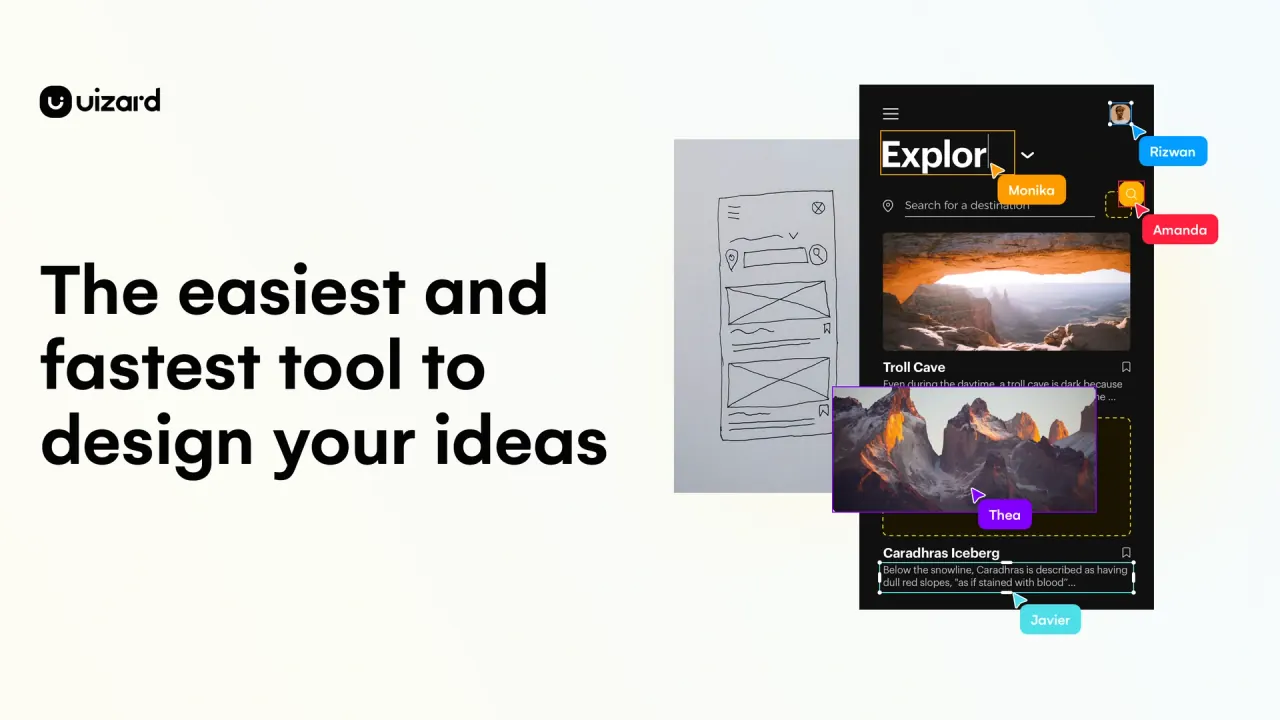

Uizard combines AI-assisted interface design, visual editing and browser previews. Teams can explore screens together, with subscription-specific handoff, usage and data terms.
Used this tool? Rate it
Used this tool? Rate it
Uizard is an AI UI design platform for producing editable app and website mockups. A product idea can begin as text, an existing screenshot or a hand-drawn wireframe, then be developed in a visual design environment.
Its output is intended for design and discussion rather than delivery of a complete application. Interactive prototypes can show a proposed screen-to-screen journey in a browser; an exported image, PDF or component snippet serves a different handoff need. Plans affect AI allowances, projects and component-code access.
Autodesigner 2.0 combines a conversational interface with a drag-and-drop editor. Uizard describes generating individual screens or multi-screen interactive prototypes from prompts, as well as selecting a component or group of components and describing a change. A text-driven theme is another way to change the visual direction of a project.
Screenshot Scanner processes screenshots one at a time rather than in bulk. Its troubleshooting guidance also says tables are not supported by the scanner and that fonts, placement or images may differ from the input and need manual adjustment. Those are specific constraints on the conversion, not measurements of how accurately every screenshot will be handled.
The home screen is the first screen shown when an interactive project is previewed. In Preview mode, navigation uses components that already have interactions configured; simply opening the preview does not create those links. The preview's Overview control shows the project together, allows zooming and toggling interaction visibility, and supports adding or resolving comments.
For a screen inside an existing project, Uizard documents a sequence through its AI assistant:
Screenshots are uploaded one at a time. The vendor suggests removing a device frame from a mobile-app capture for best results.
A clickable flow depends on the connections between components and screens. Uizard describes selecting a component and dragging its interaction arrow to the destination screen. With the interactions in place, the documented preview steps are:
Preview also has controls for returning to the home or previous screen and for viewing full-screen.
A handoff can be a set of screen images or a component-level code reference. The documented visual-export route uses Handoff Mode:
Selected screens or components can instead be exported individually; each is saved as its own image or PDF file.
For component handoff, Pro, Business and Enterprise subscribers can inspect one selected component at a time. CSS can be copied; React can be copied or downloaded as an individual component file. The same help guide says an entire project cannot be exported to HTML, JavaScript or script, and that downloadable React for individual components is its current code-export option.
A paper or whiteboard sketch can become the basis for a digital screen using Wireframe Scanner. Uizard's product-team material describes sharing work in real time and testing prototypes with users or stakeholders, so a visual starting point can be carried into a review rather than ending as an isolated drawing.
Uizard positions its editor for creating screens and refining throwaway prototypes, including for developers. A shared preview can communicate the intended navigation to a product team, while comments provide a place to discuss individual screens or a project overview.
Uizard presents editable screenshots, text-generated mockups and real-time collaboration as tools for product teams. The same product-team material describes testing prototypes with users and stakeholders, so the relevant output may be a shared design for discussion before engineering work begins.
People contributing to a review do not all need to edit the design. The pricing page advertises unlimited free viewers and commenters. Paid subscriptions are charged for Creator seats. This distinction affects team cost when a project has a smaller group making changes and a larger group viewing or commenting.
The developer-focused material describes throwaway prototyping with a drag-and-drop editor and sharing ideas with teammates. Its component-code handoff can provide a selected React or CSS reference on a supported paid plan, but the platform's export guide limits code downloads to individual React components.
Uizard's interactive previews are viewed in a browser and require an internet connection. The help center does not officially support editing on an iPad or mobile device and says functionality on those devices may be limited. Designing a mobile-app screen is therefore different from an assurance that the editor itself is supported on a phone or tablet.
Uizard documents a plugin for copying selected components from Figma and pasting them into Uizard. That is a route into the Uizard editor; the existence of an inbound component workflow does not establish that the entire original project can later be exported in the reverse direction with all of its editable structure.
A second route exports a Figma screen at 1x as PNG or JPG, then uploads it through import from screenshot. The help page says project screens must be uploaded one at a time.
The following Uizard prices were displayed on November 12, 2026. The paid card amounts shown on the pricing page are per month with annual billing. The subscription help describes paid pricing per Creator seat, and the terms say prices, charges and refunds are issued in USD.
| Plan | Displayed price | AI allowance and project access | Other card details |
|---|---|---|---|
| Free | $0 | 3 AI generations per month; Autodesigner 1.5; 2 projects | 10 free templates; unlimited free viewers and commenters |
| Pro | $12 per month, billed annually | 500 AI generations per month; Autodesigner 2.0; up to 100 projects | React/CSS handoff, private projects and access to all templates |
| Business | $39 per month, billed annually | 5,000 AI generations per month; unlimited projects | Includes Pro, faster generation, a custom brand kit and priority support |
| Enterprise | Custom, billed annually | Unlimited AI generations and teams | Includes Business, design-system setup, AI data SLA, custom billing and onboarding |
The help page lists another billing option for Pro: $19 per Creator per month on a monthly cycle. It lists Business only on a yearly cycle. A Creator is the paid editing seat in the help examples; the pricing page separately advertises free viewers and commenters, so the displayed Creator price should not be applied automatically to every viewer.
The pricing comparison and subscription help do not use identical Business figures for several tools. The pricing comparison lists monthly screenshot scans and wireframe/scribble scans at 3 for Free, 500 for Pro, 5,000 for Business and unlimited for Enterprise. Text Assistant and Image Assistant each have the same four monthly figures in that comparison: 3 for Free, 500 for Pro, 5,000 for Business and unlimited for Enterprise.
The subscription help table instead lists screenshot and wireframe scans, Text Assistant and Image Assistant at 3 per month on Free, 500 on Pro and unlimited on Business. It separately lists URL-based theme generation with those Free, Pro and Business figures. The pricing comparison's theme row refers to themes and brand kits, so the two row names should not be treated as an exact match. The reviewed pages do not explain the relationship between the different Business figures.
The FAQ says there is currently no way to see how many AI generations have been used or remain for Autodesigner, Screenshot Scanner and Wireframe Scanner.
The terms state that a subscription renews for successive periods of the same length as the originally chosen term unless it is changed or canceled. Cancellation help says cancellation takes effect at the end of the billing cycle, rather than immediately.
After Pro cancellation, the help page says the organization moves to Free and only the first two projects with up to five screens each remain accessible. It says the other projects and screens are not deleted and that renewing Pro restores access to view and edit the earlier projects. This is the help page's description of access after downgrading; the separate termination terms address whether customer data must be maintained after an agreement expires.
The published terms contain two refund provisions. Section 5.5 says fees already paid are not refunded, including unused service, while section 5.6 says a customer is entitled to a refund if they cancel and contact support within 14 days of purchase. The cancellation guide asks the customer to complete a request form and notify support, and says the refund process starts if the customer is eligible. These statements are presented with their respective scope; the documents do not explain how the two contractual provisions interact in every individual request.
Figma Make is a different starting point for a team whose existing work is already in Figma. Its design-to-code page describes starting with a frame, generating editable functional code and using a built-in editor to inspect or change that code. Uizard's documented integration begins in the other direction: copying components or importing screen images into Uizard. Its own code export is limited to individual React components.
A December 2025 firsthand comparison found Autodesigner 1.5 output less sophisticated than UX Pilot or Visily, but judged Uizard's manual design tools stronger than those two alternatives. This observation concerns the tested version, not Autodesigner 2.0, which appears on Uizard's Pro card.
Uizard's help guidance says it cannot connect a backend or database to a project to create a fully functional application. It also says API access is not currently provided. These are product boundaries for a team deciding whether it needs a visual prototype or a platform that runs an application's data and behavior.
Exports have their own constraints. The export guide says project layers and comments cannot be exported, and that a PDF cannot retain clickable interactions. A browser preview may still contain configured navigation and comments inside the product; those in-product capabilities should not be confused with what is included in a downloaded file.
Uizard's FAQ broadly says that users own their content, prompts and information. The terms provide a more conditional statement about design artifacts: ownership applies to the extent the user owns or has rights to the uploaded images, screenshots, illustrations, fonts, icons and brand names. The statements have different scopes and do not establish that every uploaded asset is available to use.
The terms do not warrant copyright protection for automatically generated graphical interfaces, prototypes, design systems, design files, code or other output formats. They also do not guarantee uniqueness and describe the output rights as non-exclusive. These are the published contractual terms, not an independent legal conclusion about a particular design.
Within an organization, public projects are accessible to all team members and private projects only to their owner. This project visibility setting is separate from model training.
The terms say design artifacts created and uploaded by Free and Pro users may be used to fine-tune and train machine-learning models. They say the corresponding Business and Enterprise artifacts are not used for that purpose. Enterprise customers may request an SLA covering data usage and security. These are plan-specific statements in the terms; they should not be replaced by a general claim that every project is or is not used for training.
The termination provision says that after subscription cancellation and expiration of the agreement, Uizard has no obligation to maintain customer data and may delete it immediately or retain it according to its privacy-policy practices. A separate provision says a customer can request a file of customer data in writing within 30 days after the effective termination date; after that period the company has no obligation to maintain or provide it.
For customer contacts, the privacy-policy table lists contact and company details, communications, billing details and credit-card information. It states retention of up to five years after the year in which the personal data were collected, with a longer period when necessary, such as to defend legal claims. That table describes the listed personal-data categories and does not establish a five-year retention period for every project file.
Yes. Screenshot Scanner accepts JPG, PNG or HEIC images one at a time and produces an editable screen. Its help page notes that tables are unsupported.
No. The export guide limits downloadable code to individual React components; paid Handoff Mode also allows CSS to be copied.
The cancellation guide says only the first two projects and up to five screens in each remain accessible; renewing Pro restores access to the other, undeleted projects.
